
Amplifier Unified is a local workspace for working with AI. Chat or talk with an assistant, give it tasks, and follow its work across conversations, tools, and shared visual surfaces. It uses your configured Amplifier bundles and model accounts.
Explore the Amplifier Unified website for examples and getting started.
Choose your computer: macOS or Linux, or Windows 11 (preview).
The installer supports macOS and Linux, including Windows through WSL with systemd.
You need Git, curl, and CA certificates. On Ubuntu or Debian, install them with:
sudo apt-get update && sudo apt-get install -y curl git ca-certificatesOn macOS, run xcode-select --install if Git is not already available. Then run
the installer as your normal user, without sudo:
curl -fsSL https://raw.githubusercontent.com/microsoft/amplifier-unified/main/scripts/install.sh | bashIt finds or installs uv and Python, installs the latest stable release, starts Amplifier Unified as a per-user service, and opens your browser. Existing Amplifier configuration, accounts, and history are preserved. For manual installation, see the platform and recovery instructions.
This is a preview. The setup file is not signed yet, so your browser asks you to confirm the download. You do not need WSL, Python, Git or a terminal. The steps below describe Microsoft Edge.
- Download the setup file: AmplifierUnifiedSetup-windows-x64.exe.
- Microsoft Edge holds the download and says that the file "isn't commonly downloaded". In the Downloads list, point at the file and select More actions (…), then Keep. Edge then shows "Publisher: Unknown". Select the small arrow next to Delete, then Keep anyway.
- Open the file: select Open file in the Downloads list, or double-click the file in your Downloads folder. Do not use "Run as administrator". Select OK to install. Setup takes about 3 minutes. Select OK when it has finished.
- Amplifier starts. The first start can take a few minutes. Amplifier shows one message; select OK. Windows then shows a "Security Warning" that asks whether to install a certificate named "Amplifier Unified (this PC only)". Select Yes. Windows preselects No, so do not only press Enter. Amplifier uses this certificate only for the connection between your browser and Amplifier on this PC. Amplifier then opens in your browser.
- Connect an AI account in the app. If Microsoft Edge offers to save your key as a password, select Not now.
Your first message takes longer than later ones (about a minute in our test). Amplifier shows "Preparing chat…" during that time.
To open Amplifier later, use the Start menu: Amplifier Unified.
In these cases, setup or the first start does not finish. A message says what to do:
- Setup says: "This Windows sign-in runs every program as administrator." Sign in to Windows with a standard account, or turn User Account Control on, and then run setup again.
- Setup says that the path of the Amplifier folder "is too long for Windows" (the limit is 59 characters). Use a Windows account with a shorter name.
- In step 4, Amplifier says that "this PC's security settings do not let it finish setting up its private connection to your browser". If your organization manages this PC, ask its IT support to trust the certificate file named in the message for your account.
Limits of this preview:
-
PC: Windows 11 with an Intel or AMD processor. ARM processors are not supported yet.
-
Account: Amplifier installs for your own Windows account only. It does not need administrator rights.
-
Folder: Amplifier installs into
%LOCALAPPDATA%\Amplifierand keeps your chats, settings and accounts there. What a chat writes outside that folder depends on the AI connection:- OpenAI API: after a chat in our tests on a PC, we looked for a file or folder with "amplifier" in its name. We looked directly in the usual places of the Windows account, such as the profile folder, AppData, Documents and the Desktop. Outside the folder, we found only one that Amplifier made: the Start-menu entry from setup. We did not look inside other folders there or on the rest of the disk.
- Anthropic API: up to version 0.106.2, a chat writes one small file
outside the folder:
%USERPROFILE%\.amplifier\rate-limit-state.json. We saw this in a test on a PC. From version 0.106.3 on, Amplifier writes that file inside the folder instead. We tested a new installation of version 0.106.3 on a PC with one chat and one "Send test message" check of the connection. Both wrote the file inside the folder. The folder%USERPROFILE%\.amplifierdid not appear. A file that an earlier version wrote stays where it is. Later versions do not use it, and uninstall does not remove it. You can delete it. - GitHub Copilot Subscription: its component makes two folders,
%USERPROFILE%\.amplifier-provider-github-copilotand%LOCALAPPDATA%\amplifier-provider-github-copilot. We read this in its source code. We have not tested it on a PC. - ChatGPT Subscription, Google Gemini API and OpenAI Compatible API: we have not tested this.
-
Uninstall: open Settings > Apps > Installed apps, find Amplifier Unified (unsigned preview), select More options (…), then Uninstall, then Uninstall again. Amplifier first asks: "Do you also want to delete your chats, settings and saved accounts?"
- No uninstalls Amplifier and keeps the folder. Your chats, settings and accounts stay there, together with the program files (1.4 GB to 1.9 GB in our tests).
- Yes leads to a second question: "Delete everything that Amplifier keeps in this folder?" Yes there uninstalls Amplifier and deletes your chats, settings, saved accounts and stored keys, the files that Amplifier or you saved in its workspace folder, and the program files. This cannot be undone. No there changes nothing.
- Cancel changes nothing. Amplifier stays installed.
These are the results of an uninstall that finishes. If Amplifier finds that it is working on a chat, it asks before it stops that work. An uninstall stops Amplifier and removes it from the Start menu and the Apps list. If Windows asks whether to delete a certificate, select Yes each time.
After a delete, Amplifier says "Amplifier is uninstalled." When you close that message, it starts to remove its last program files and then the folder. A file or folder directly in the Amplifier folder whose name Amplifier does not use stays, and then the folder stays too. If that last step does not finish, the folder stays, and some program files can stay in it.
An uninstall can stop before its end. If Amplifier then shows a message, the message says what happened and what to do next. If it says that Amplifier "could not begin to delete its folder", that uninstall deleted nothing in the folder. If it says that Amplifier "could not finish its removal from this PC", or that some of your chats, settings or saved accounts "could not be deleted", a part of the folder can already be deleted: do not open Amplifier, and uninstall again. At that next uninstall, the first question can be another one: "The removal of Amplifier from this PC did not finish." Yes there leads to the second question above, and No changes nothing.
Amplifier can also ask only "Uninstall Amplifier?" with Yes and No, for example in an installation from an earlier setup file. There, Yes uninstalls and leaves the folder, and No changes nothing.
The native Windows design and status records what is tested.
- Sign in to Amplifier Unified in the browser and connect a model account if needed.
- Choose a workspace and start a chat. You can finish setup with an assistant or use Settings.
- Describe the outcome you want. Review progress and results in the conversation.
The first message can take a few minutes while Amplifier Unified prepares its runtime. On macOS and Linux, you can reopen the workspace at http://127.0.0.1:8941. On Windows 11, open Amplifier Unified from the Start menu.
Use Enter to send and Shift+Enter for a new line. You can format messages with Markdown and attach files or images. In a code block, Enter inserts a line; use the Send button to submit the message.
- Settings: choose models, bundles, and capabilities. Settings guide.
- Updates: open Settings → Updates to check for a release or configure automatic checks. Update guide.
- Another device: configure a trusted HTTPS address for LAN or Tailscale access. Deployment guide.
- An app window: use your browser's install option, Safari's Add to Dock, or Add to Home Screen. Amplifier Unified must remain running at the same address.
- Recovery: use the reset guide to repair an installation while preserving your data.
See development setup and contribution guidance to work from source. Published packages include the web client; only frontend development requires Node.js and npm. Browser client source is maintained in amplifier-client-web.
For integrations, see Amplifier Unified as an ACP backend and the architecture guide.
A complete AI workspace with its own web host, selected browser client, and configurable Amplifier execution.
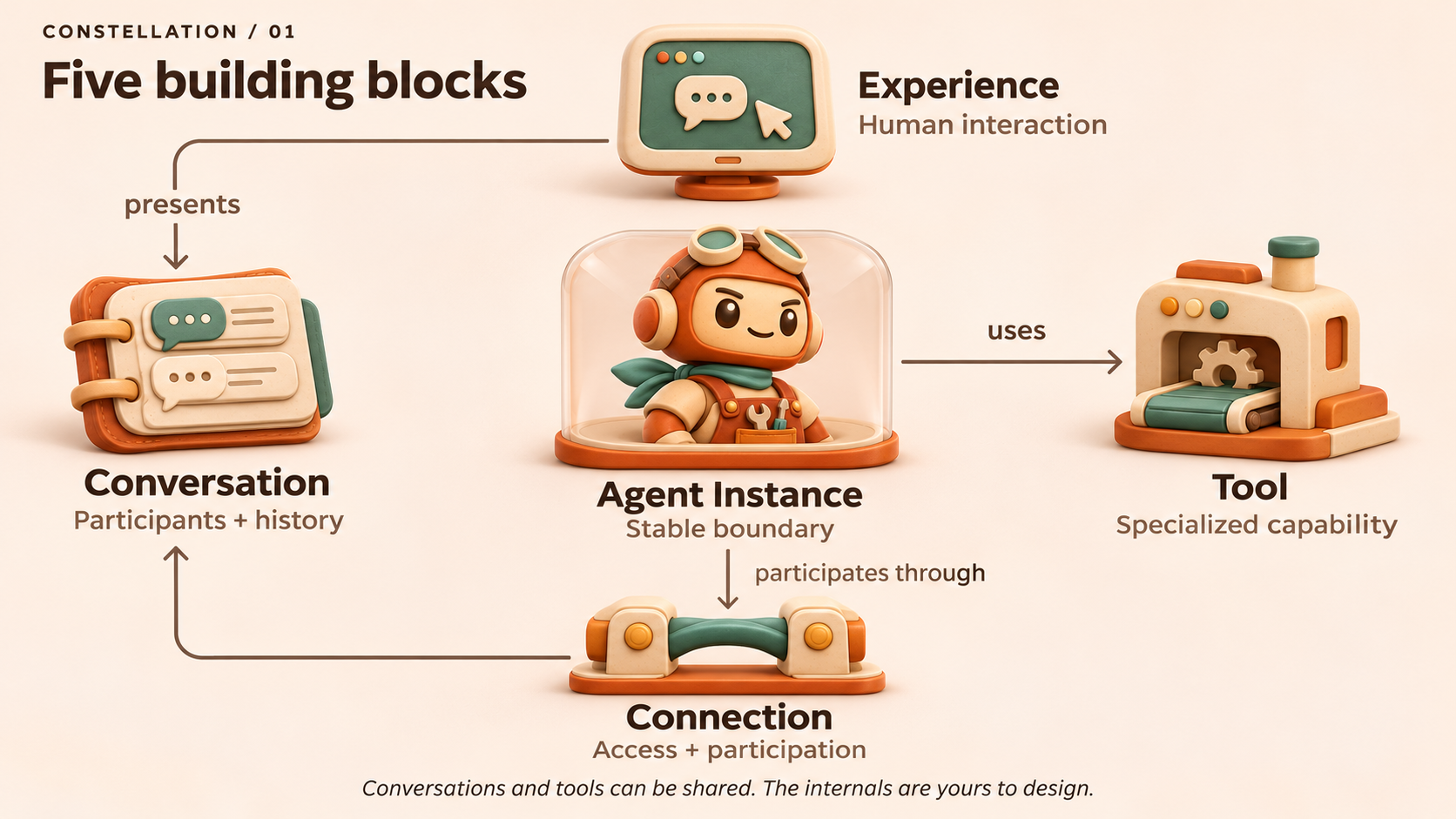
Roles: Experience, Conversation. Supports: Agent Instance, Tool, Connection.

Product website · Ecosystem map · Open the map · Map guide
The five shared building blocks
Note
This project is not currently accepting external contributions, but we're actively working toward opening this up. We value community input and look forward to collaborating in the future. For now, feel free to fork and experiment!
Most contributions require you to agree to a Contributor License Agreement (CLA) declaring that you have the right to, and actually do, grant us the rights to use your contribution. For details, visit Contributor License Agreements.
When you submit a pull request, a CLA bot will automatically determine whether you need to provide a CLA and decorate the PR appropriately (e.g., status check, comment). Simply follow the instructions provided by the bot. You will only need to do this once across all repos using our CLA.
This project has adopted the Microsoft Open Source Code of Conduct. For more information see the Code of Conduct FAQ or contact opencode@microsoft.com with any additional questions or comments.
This project may contain trademarks or logos for projects, products, or services. Authorized use of Microsoft trademarks or logos is subject to and must follow Microsoft's Trademark & Brand Guidelines. Use of Microsoft trademarks or logos in modified versions of this project must not cause confusion or imply Microsoft sponsorship. Any use of third-party trademarks or logos are subject to those third-party's policies.