Development
Welcome to ChurchCRM development! This guide will help you set up a complete development environment and start contributing to the project.
-
Install Git: Follow the Git installation guide
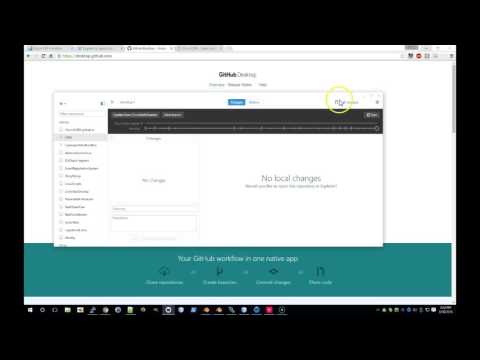
- Alternative: Use GitHub Desktop for a graphical interface
-
Install Node.js 20+: Download from nodejs.org
-
Install Docker: Download from the official website:
# 1. Clone the repository
git clone https://github.com/ChurchCRM/CRM.git
cd CRM

# 2. Install dependencies
npm ci
npm run deploy

# 3. Start Docker development environment
docker compose -f "docker/docker-compose.test-php8-apache.yaml" up -d --build

# 4. Access the application
# Open http://localhost/ in your browser
# Login: admin / changeme- Code Changes: Edit files in your local repository
-
Build Assets: Run
npm run deployto rebuild CSS/JS assets - View Changes: Refresh http://localhost/ to see your changes
- Database Access: Use http://localhost:8088/ (adminer) for database management
# Build and deployment
npm run deploy              # Main build command (CSS, JS, PHP dependencies)
npm run composer-install    # Install PHP dependencies only
npm run orm-gen             # Generate ORM models from database schema

# Docker development
npm run docker:dev:start    # Start development containers
npm run docker:dev:stop     # Stop development containers
npm run docker:dev:logs     # View container logs
npm run docker:dev:login-web # SSH into web container

# Testing
npm run test               # Run Cypress end-to-end tests
npm run docker:test:start  # Start testing environment
npm run docker-test-stop   # Stop testing environment

# Localization
npm run locale:audit       # Check translation completeness
npm run locale:download    # Download latest translations
npm run locale:term-extract # Extract terms for translation- Framework: AdminLTE (Bootstrap-based admin theme)
-
CSS: SASS compilation to
churchcrm.min.css - JavaScript: jQuery, plus React/TypeScript for newer components
- Build Tools: Grunt (task runner) + Webpack (React components)
- Language: PHP (see System Requirements for details)
- Framework: Slim Framework v4 (MVC architecture)
- Database ORM: Propel (with auto-generated models)
- Database: MySQL or MariaDB (see System Requirements for details)
- End-to-End: Cypress (browser automation)
- Integration: PHP-based tests
- Environment: Docker containers for consistent testing
Use Slim MVC architecture:
-
Models: Propel ORM entities in
src/ChurchCRM/model/ -
Views: PHP templates in
src/templates/or React components inreact/ -
Controllers: Slim route handlers in
src/api/routes/orsrc/v2/routes/
Follow AdminLTE design principles:
- Use existing AdminLTE components when possible
- Create modular, responsive designs
- Add custom styling in SASS files under
src/skin/scss/
-
Legacy code: jQuery-based, located in
src/skin/js/ -
New components: React/TypeScript, located in
react/ - Internationalization: Use i18next for user-facing text
- Edit schema in
src/mysql/upgrade.json - Run
npm run orm-gento regenerate Propel models - Test changes with Docker database container
- Development database includes sample families, people, and events
- Reset database: Use adminer or API endpoint
/api/database/reset
- Read the Contributing Guide
- Join the developer chat at Matrix
- Look for
good first issuelabels
- Fork the repository on GitHub
-
Create a feature branch:
git checkout -b feature-name - Make your changes and test thoroughly
- Submit a pull request with clear description
- Follow PSR-12 for PHP code
- Use consistent indentation and naming conventions
- Add comments for complex logic
- Update documentation for user-facing changes
For development inside containers:
# SSH into web container
npm run docker-dev-login-web

# Inside container
cd /home/ChurchCRM
npm run deploy
chmod a+rwx src/logs # Fix log permissions# Generate production assets
npm run deploy
# Create release package
grunt compress-
PHP Errors: Check
src/logs/for application logs -
Container Logs: Use
npm run docker:dev:logs - Database: Use adminer at http://localhost:8088/
- Email Testing: Check http://localhost:8025/ for sent emails
- Automated Testing - Cypress end-to-end testing guide
- Code Functional Reference
- Database Structure
- Localization System
- Matrix Chat - Developer discussions
- GitHub Issues - Bug reports and feature requests
- GitHub Discussions - General questions
In the ChurchCRM source directory run:
npm installNote: if you are running Apple Silicon (M1/M2 processor) you will get errors with
node-sass.
For example:
npm ERR! Binary has a problem: Error: dlopen(/path/to/ChurchCRM/node_modules/node-sass/vendor/darwin-arm64-120/binding.node, 0x0001):
         tried:
         '/path/to/ChurchCRM/node_modules/node-sass/vendor/darwin-arm64-120/binding.node' (not a mach-o file),
         '/System/Volumes/Preboot/Cryptexes/OS/path/to/ChurchCRM/node_modules/node-sass/vendor/darwin-arm64-120/binding.node' (no such file),
         '/path/to/ChurchCRM/node_modules/node-sass/vendor/darwin-arm64-120/binding.node' (not a mach-o file)'
If this happens, simply execute the following (fix courtesy of "m_kos" at Stack Overflow):
npm install node-sass@npm:sass{.sh} (requires npm >6.9)
Start the application and test it locally:
-
npm run deploy{.sh} -
npm run docker:test:start{.sh} - Open your browser and visit http://localhost/ and log in with admin/changeme
Download an IDE
- PHP Storm is a great but paid
- Visual Studio Code is a free IDE